
Global Communications FAQ
 Back
BackPurchase & Subscription
The compatibility of your device with eSIM mainly depends on whether the manufacturer has integrated eSIM functionality. In some countries or regions, certain models may not support eSIM, or your device may be restricted by the carrier.
You may also verify your iPhone or iPad model using Apple’s website to ensure it is not from Mainland China, Hong Kong, or Macau. Devices outside these regions generally support eSIM.
For the most accurate information, please confirm with your device manufacturer, retailer, or carrier.
You can follow these steps to check if your iOS device supports eSIM (steps may vary slightly depending on model and iOS version):
Go to Settings
1.Tap General > About
2.Scroll down to Carrier Lock
3.If it shows No SIM restrictions, your iPhone is unlocked and supports eSIM.
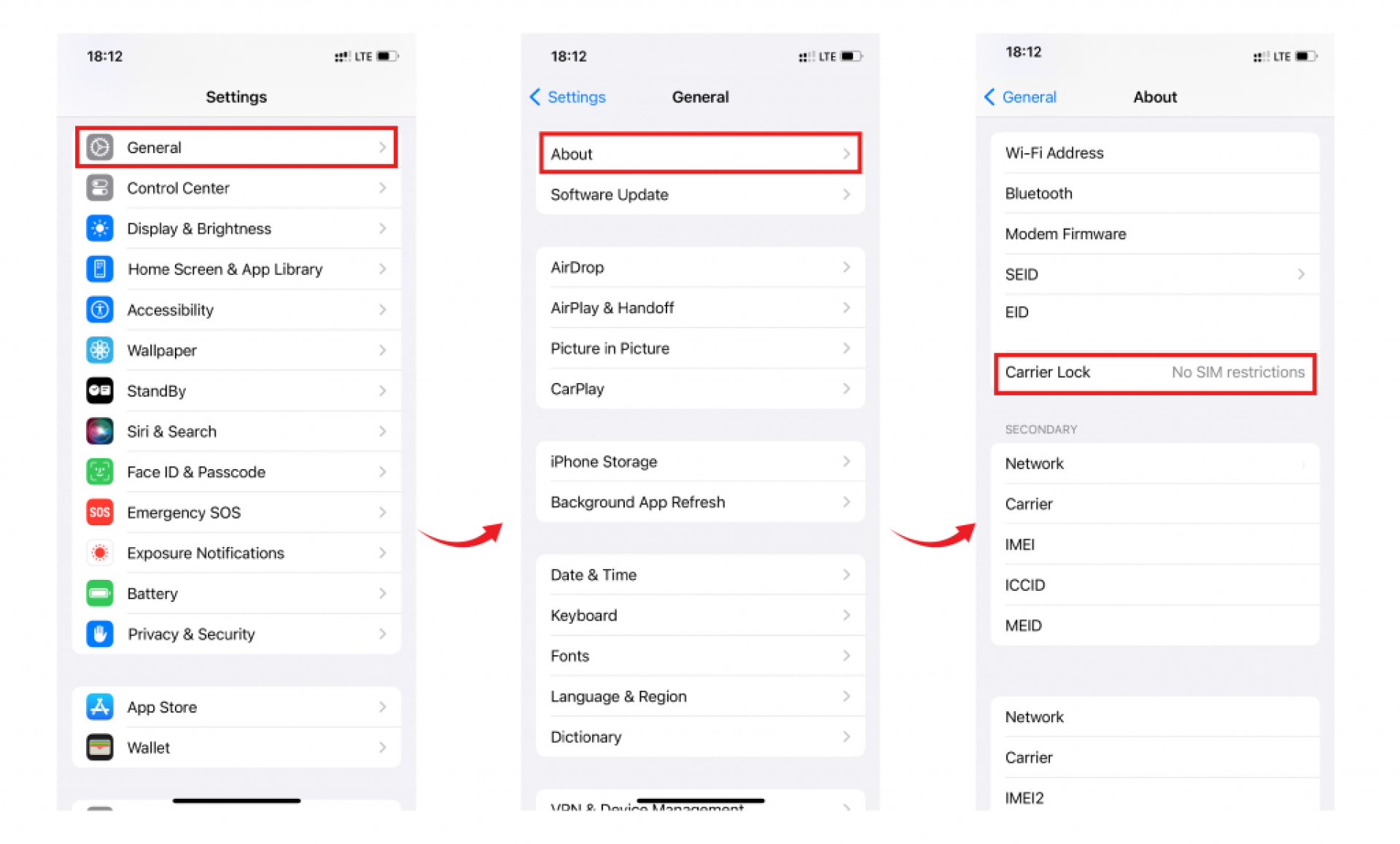
Whether your device supports eSIM mainly depends on whether the manufacturer has enabled eSIM functionality on that specific model.
Please Note: even if a device is officially listed as eSIM-compatible, eSIM may not work in some cases due to:
1. Android is an open-source system, and manufacturers or carriers may customize it.
2. Certain models sold in specific countries/regions may not include an eSIM module.
3. Your carrier may have disabled or restricted eSIM functionality on the device.
You can follow these steps to check if your Android device supports eSIM (steps may vary by model and system version).
For Samsung Galaxy devices:
1.Open the Settings app
2.Tap Connections
3.Go to SIM card manager
4.If you see an option to Add eSIM, your device may support eSIM.
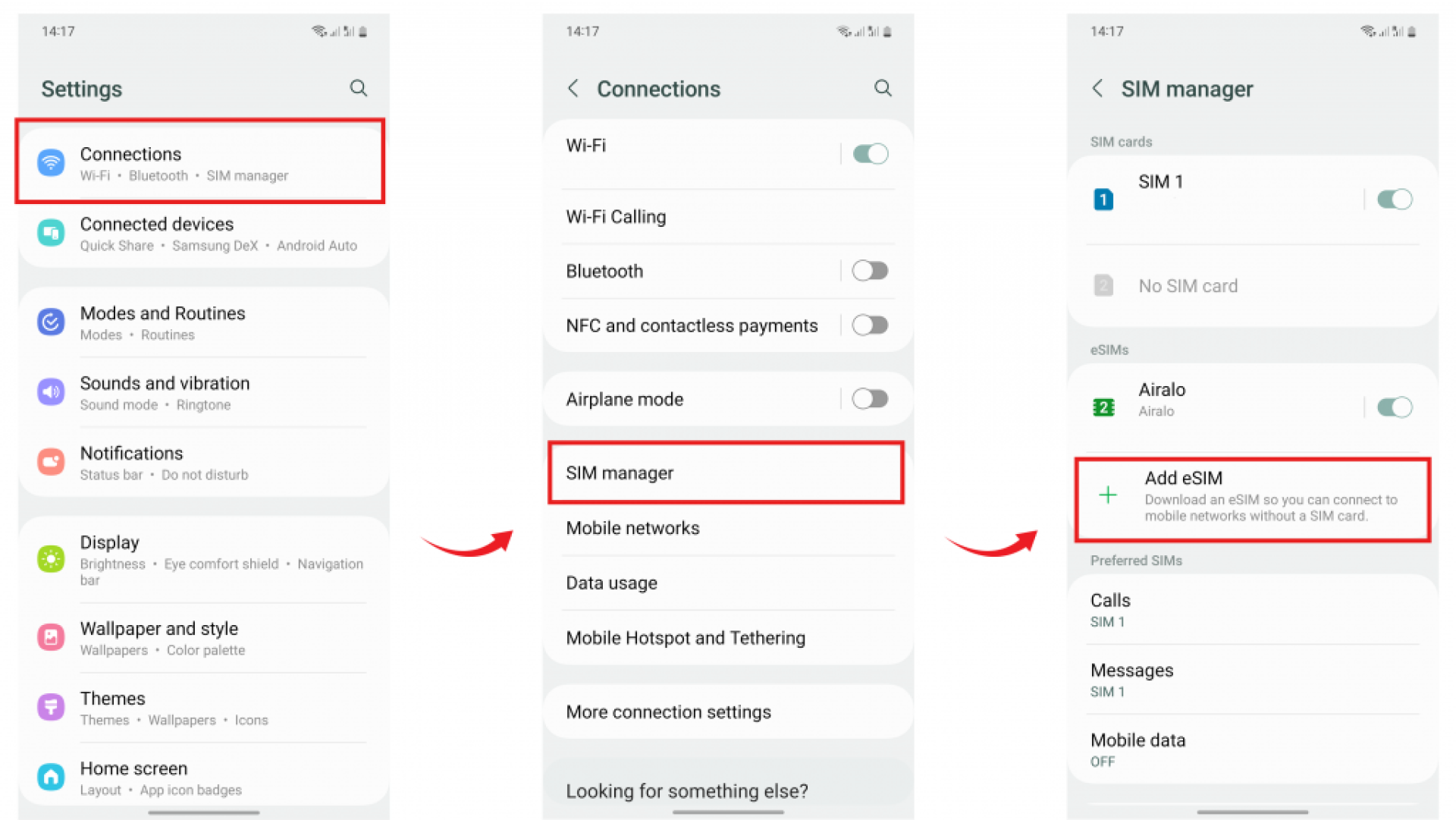
For the most accurate confirmation, please check with your device manufacturer, retailer, or carrier.
For Google Pixel devices:
1.Open the Settings app
2.Tap Network & Internet
3.Tap the “+” sign next to SIMs
4.If you see the option “Download a SIM instead?”, it means your device supports eSIM.
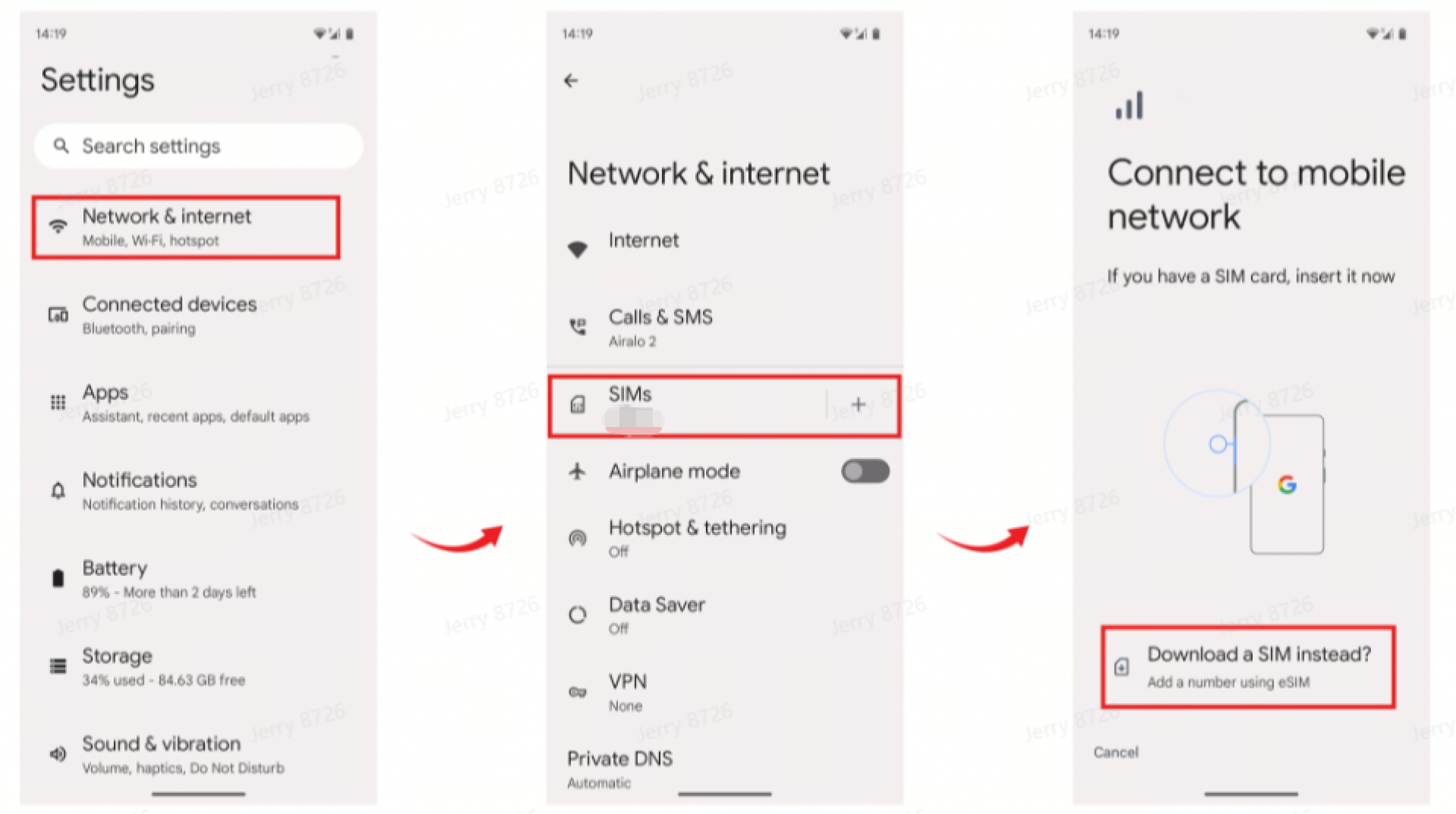
If the EID is not displayed, your device may not support eSIM. We recommend contacting the manufacturer for further confirmation.
For other Android devices:
1.Open the dialer and enter *#06#, then press the call button.
2.If your device supports eSIM, an EID (eSIM Identifier) number will be displayed on the screen.
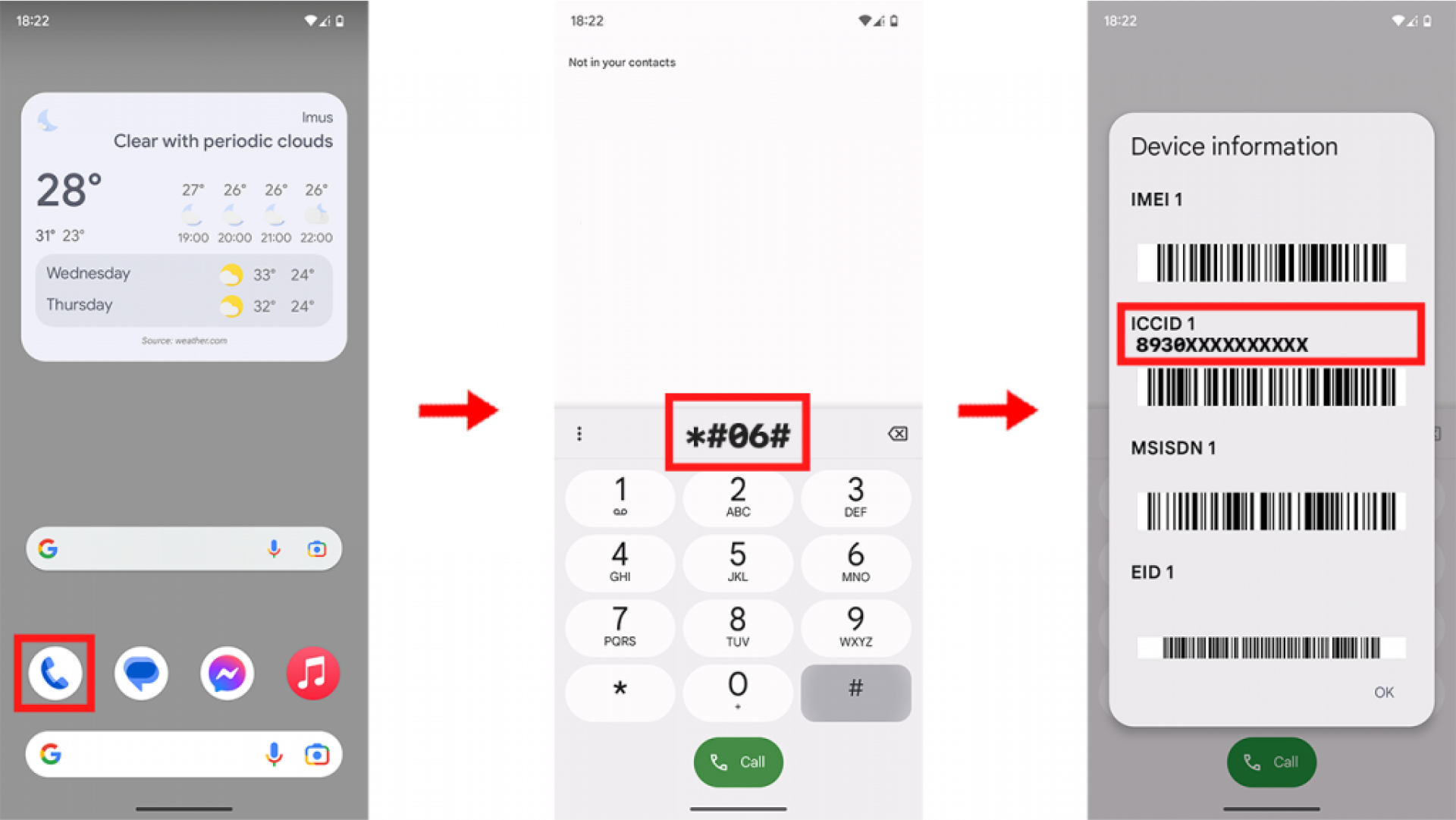
If no EID is shown, your device may not support eSIM. Please contact the manufacturer for confirmation.
The data allowance of an eSIM plan depends on the specific product you purchase, as different plans may include different amounts of data.
If the eSIM is not activated after purchase, its validity period is usually 60 Days. Please make sure to activate and use the plan within this period; otherwise, it will expire and cannot be used.
We offer several eSIM plans that support 5G networks. However, 5G coverage is limited to certain countries and regions, and availability also depends on your device and location.
Why can’t my 5G eSIM connect to a 5G network?
Even if your device supports 5G and is connected to the network, you may still experience issues due to:
- Weak or unavailable 5G signal in your area
- Network automatically switching to 4G/LTE or lower to maintain a stable connection
- 5G not enabled on your device or not set as the preferred network
If you have any questions, please feel free to contact our support team.
Our products do not restrict access to any websites or apps. However, while using eSIM data, some platforms may limit access due to:
- Local regulations: Users are expected to comply with the laws and policies of the country they are in.
- Proxy settings: Some websites or apps may detect that your traffic is routed through a proxy server, which can limit functionality or block access.
- Security protocol conflicts: Certain platforms’ security mechanisms may not be compatible with the routing methods used by eSIM.
- Regional or carrier restrictions: Platforms may limit services if they detect access from specific regions or network providers.
Since eSIM data is often routed through a roaming platform, some apps or websites may mistakenly restrict access. Please note that this is beyond our control.
No. Once an eSIM is activated, it is bound to a single device and cannot be installed or transferred to another device.
Can I reinstall it after removal?
No. Once an eSIM is removed, it cannot be reinstalled on the same or any other device. A new eSIM must be purchased to reconnect to the mobile network.
Why is there this restriction?
This design ensures device security and user identity uniqueness, preventing unauthorized transfer or duplication.
Before installation, please note:
- Only install the eSIM on the device you plan to use.
- Before changing or resetting your device, confirm whether you still need the eSIM.
Account & Usage
If your device supports eSIM, we recommend activating it in a stable environment, preferably using Wi-Fi. A reliable internet connection is essential to ensure the installation process completes smoothly.
Depending on the type of eSIM you purchased, you can add it to your device in the following ways:
1.Scan QR Code
- Go to Settings → Network & Internet (or Connections → SIM Manager)
- Select Add Mobile Network or Add eSIM
- Your phone will prompt you to scan the eSIM QR code provided by your carrier
- Align the camera to the QR code; the system will automatically download the eSIM profile
- Follow the prompts to complete installation; the new eSIM will appear in SIM Manager
- Make sure to switch mobile data to the eSIM and enable Data Roaming
Important: If you activate the eSIM in advance, do not use it before arriving at your destination to avoid data loss.
2.Manual Setup
- Go to Settings → Network & Internet (or Connections → SIM Manager)
- Select Add Mobile Network or Add eSIM
- Choose Enter Activation Code
- Enter the activation code provided by your carrier (format: 1$rsp-0001 linksfield.net$XXXXX-XXXXX-XXXXX-XXXXX)
- Follow the prompts to complete installation; the new eSIM will appear in SIM Manager
- Make sure to switch mobile data to the eSIM and enable Data Roaming
Important: If you activate the eSIM in advance, do not use it before arriving at your destination to avoid data loss.
If you have any questions, please feel free to contact our support team—we’re happy to assist you.
Before installing, please make sure your device supports eSIM. For details, see How do I check if my iOS device supports eSIM?
If your device supports eSIM, we recommend activating it in a stable environment, preferably using Wi-Fi. A reliable internet connection is essential to ensure the installation process completes smoothly.
1.Scan QR Code
- Open the Camera app on your iPhone and scan the eSIM QR code provided by your carrier
- Tap the prompt on the screen to start the eSIM installation process
- Go to Settings → Cellular → Add Cellular Plan
- Use the iPhone to scan the eSIM QR code again if prompted
- Follow the on-screen instructions to complete installation
- Once installed, the eSIM will appear in the Cellular Plans list
- Go to Settings → Cellular, select the newly added eSIM, make sure it is enabled, and turn on Data Roaming
Important: If you activate the eSIM in advance, do not use it before arriving at your destination to avoid data loss.
2.Manual Setup
- Go to Settings → Cellular → Add Cellular Plan
- Select Enter Details Manually
- Enter the activation code provided by your carrier (format: 1$rsp-0001 linksfield.net$XXXXX-XXXXX-XXXXX-XXXXX)
- After verification, the eSIM will automatically download and configure
- Go to Settings → Cellular, select the newly added eSIM, make sure it is enabled, and turn on Data Roaming
Important: If you activate the eSIM in advance, do not use it before arriving at your destination to avoid data loss.
If you have any questions, please feel free to contact our support team—we’re happy to assist you.
We recommend installing your eSIM at one of the following times:
1.Before leaving your departure location or at the airport, in a stable network environment.
2.Upon arrival at your destination, if you prefer to activate the eSIM only after reaching the destination, also in a stable network environment.
If you have any questions, feel free to contact our support team—we’re happy to assist you.
Most eSIMs cannot be reinstalled once removed from a device. If you accidentally delete your eSIM, you can first try scanning the original QR code to download it again.
If reinstalling via the QR code does not work, please contact our support team for assistance.
The APN (Access Point Name) is required for your device to connect to the mobile data network. In some cases, you may need to manually configure the APN to successfully use data services with a specific eSIM.
iOS:
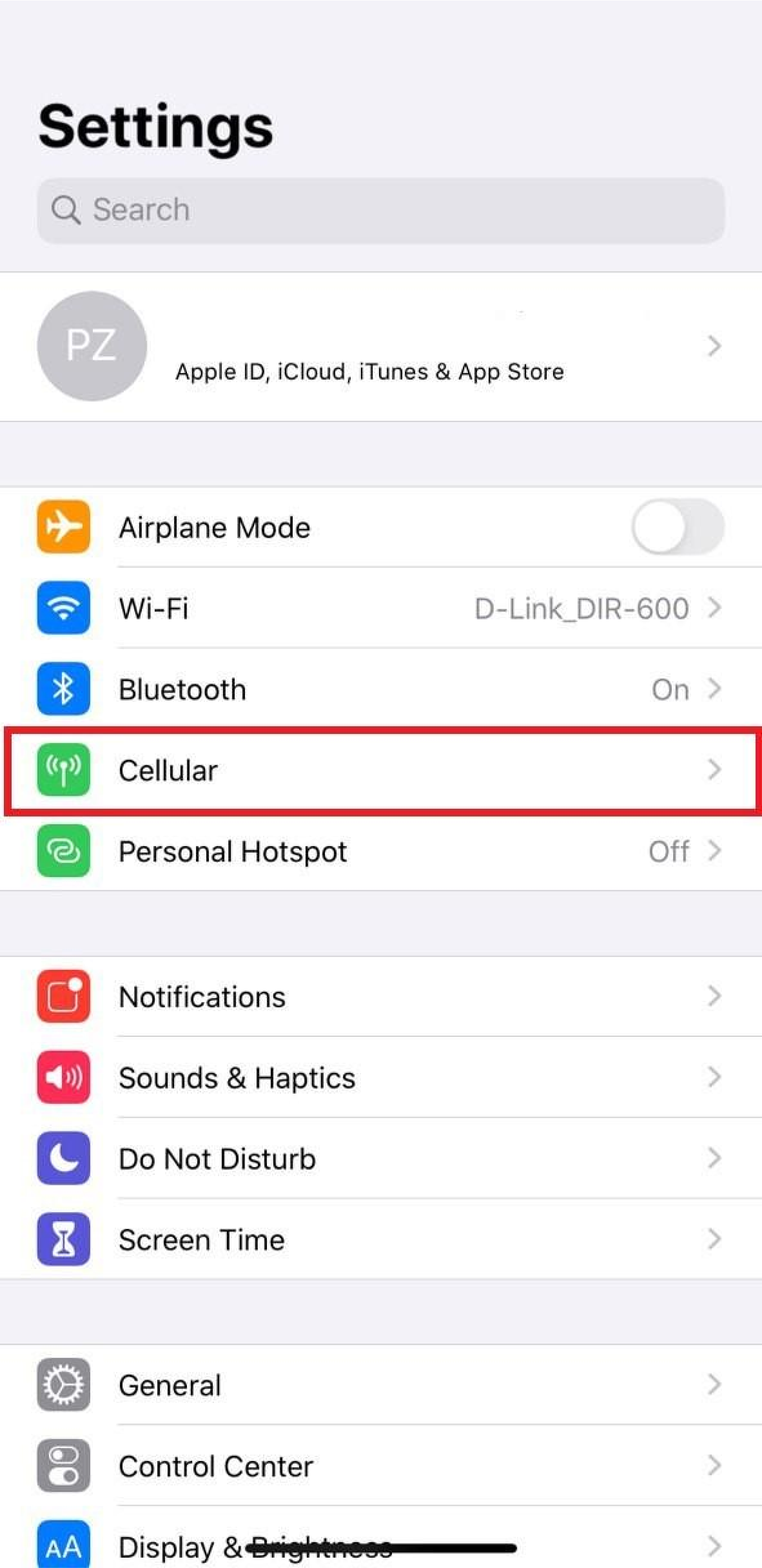
1.Go to Settings
2.Tap Cellular
3.Select your eSIM under Cellular Plans
4.Tap Cellular Data Network
5.Enter the new APN provided in the eSIM setup instructions in the APN field under Cellular Data (ensure it is lowercase and a single word)
Android:
1.Go to Settings
2.Tap Network & Internet
3.Tap Mobile Network
4.Tap Access Point Names (APN)
5.Enter the new APN provided in the eSIM setup instructions (ensure it is lowercase and a single word)
If you have any questions, feel free to contact our support team—we’re happy to assist you.
You can safely remove an eSIM in the following situations:
The eSIM no longer has an active data plan or has expired
Each eSIM purchased comes with a data plan that must be activated. If your eSIM still has an active plan that hasn’t expired, you can view its information in your account. Do not delete the eSIM while it still has active data.
You are no longer using it
If you have an eSIM you don’t plan to use, you can safely remove it.
Your new eSIM plan is for the same country/region
Each new eSIM purchased is a brand-new profile that must be installed. To avoid confusion with existing eSIMs, we recommend removing the old eSIM or labeling each eSIM separately.
To remove an eSIM:
1.Go to Settings → Cellular (iOS) or Settings → Mobile Network (Android)
2.Select the eSIM you want to delete
3.Choose Remove Cellular Plan, Remove eSIM, or Delete Mobile Plan (the exact wording may vary by device)
If you have any questions, please feel free to contact our support team—we’re happy to assist you.
eSIM data can only be used within the validity period. Any remaining unused data will expire and cannot be recovered once the validity period ends.
If you have any questions, please feel free to contact our support team—we’re happy to assist you.
Your eSIM plan typically starts its validity period once activated. The validity is calculated by calendar days (24-hour units), not by actual usage hours.
For example, if you activate your eSIM on September 1 at 15:00, the first day counts until September 1 at 23:59.
Different products may have different activation policies, generally falling into two types:
1.Validity starts when the eSIM connects to a supported network:
You can install the eSIM in advance without immediately activating it. Follow the installation instructions, and the eSIM will become active once you reach your destination and connect to the network.
2.Validity starts upon installation:
Your eSIM is activated immediately upon installation, and the validity period begins at that moment—even if you haven’t reached your destination yet.
These two scenarios may affect your actual usage time. We recommend planning and purchasing your eSIM accordingly to ensure sufficient usage.
If you have any questions, feel free to contact our support team—we’re happy to assist you.
Support & Troubleshooting
If your device was purchased through a mobile network provider or carrier, it may be network-locked, meaning you cannot use other networks or install an eSIM.
To use an eSIM, please contact your original carrier to request that your device be unlocked.
Please note:
- If your device was only recently unlocked, the carrier may temporarily disable eSIM functionality for security reasons.
- In such cases, you will still need to contact your carrier to request removal of this restriction.
If you have any questions, please feel free to reach out to our support team — we’ll be happy to assist you.
This error may occur if you try to install an eSIM on a network-locked device.
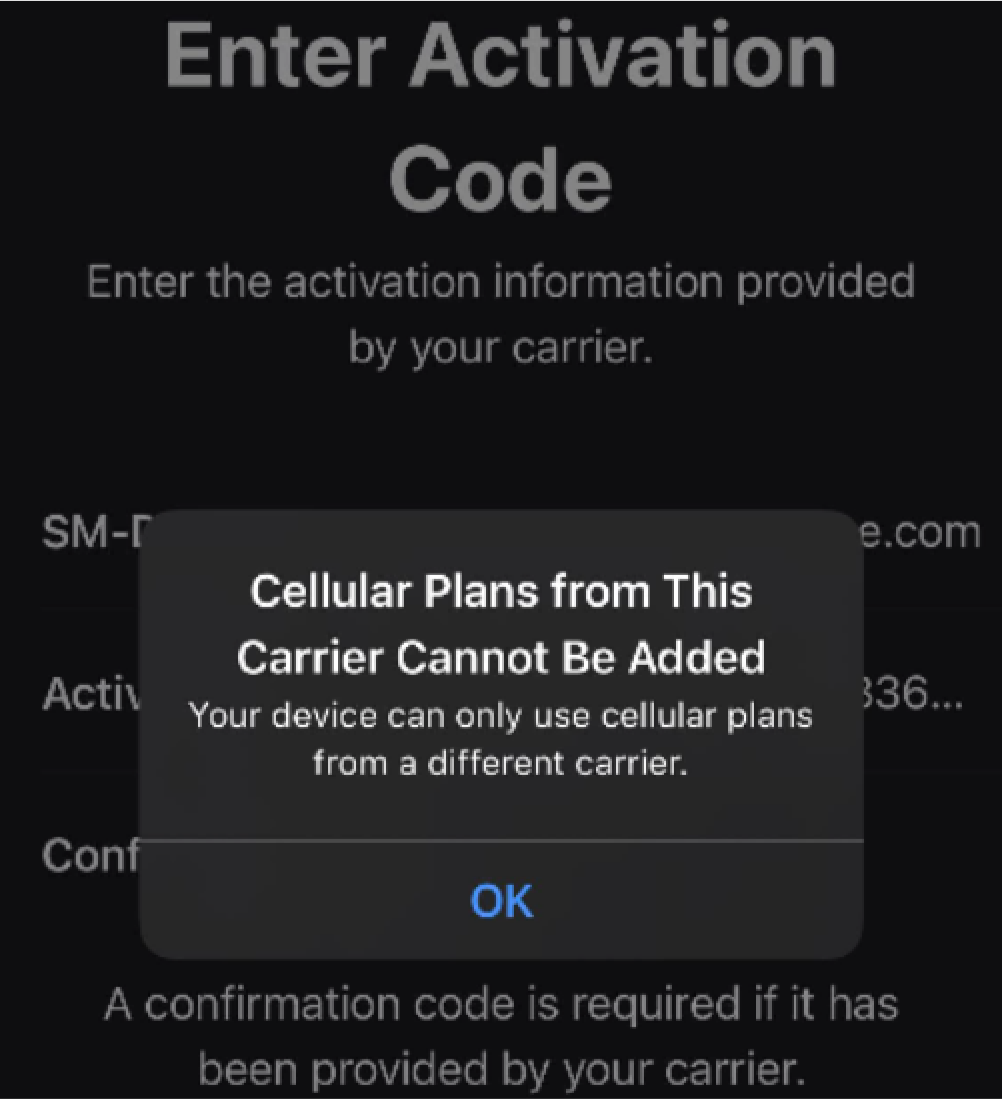
You can check whether your device is locked by following these steps:
- Go to Settings > General, then tap About.
- Under Carrier Lock, you should see No SIM restrictions. If not, please contact your carrier to unlock the device.

If your current provider confirms that your device is unlocked, you can contact your original carrier to request an unlock, or reach out to our support team.
This error may occur due to the following reasons:
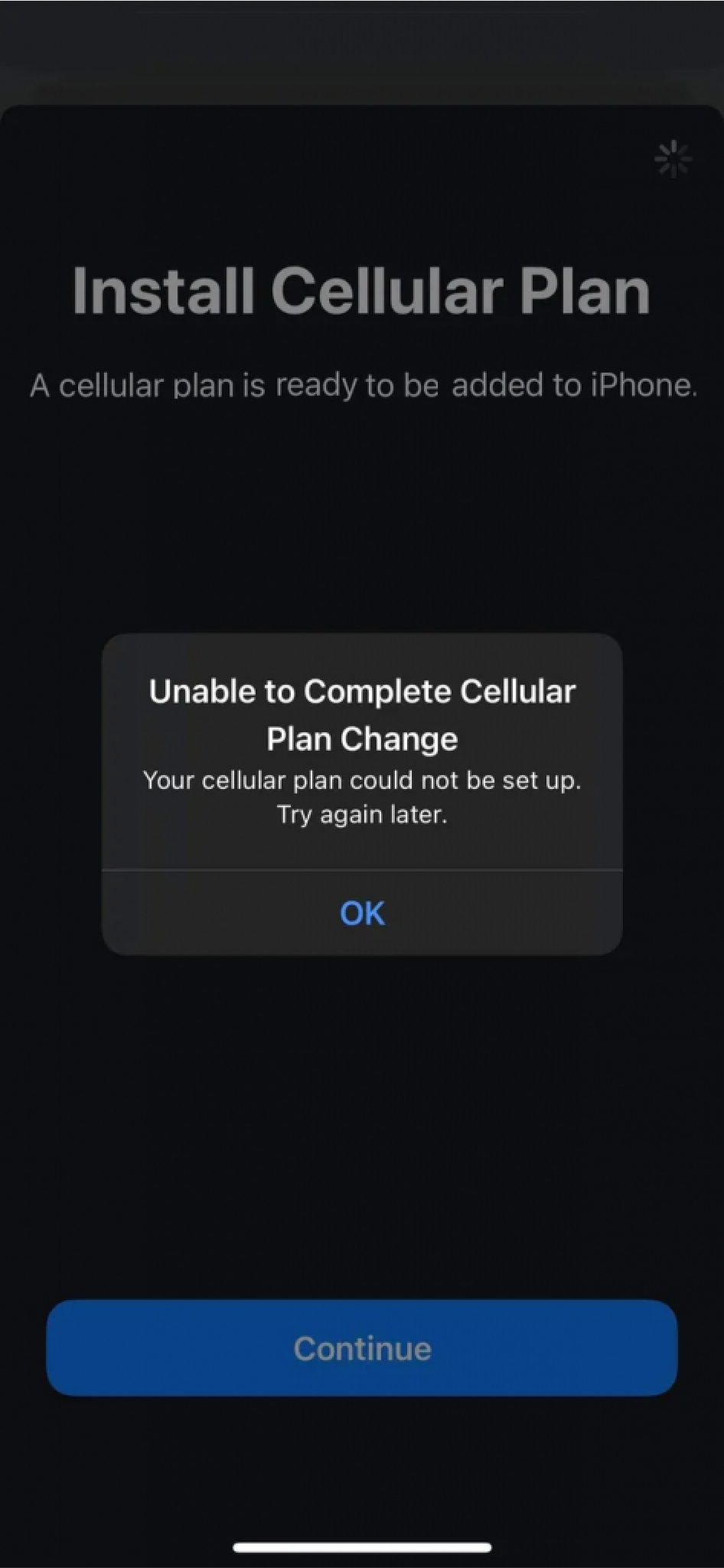
Too many eSIMs installed
- Most eSIM-compatible devices support storing multiple eSIMs, but the number that can be active at the same time depends on the device model (e.g., iPhones usually store 5–10 eSIMs).
- If your storage is full, remove any old or unused eSIMs before retrying.
Cellular/Mobile Data is turned off
- Ensure that your mobile data and cellular functions are enabled.
The eSIM has already been installed
- Most eSIMs can only be installed once. If you try to reinstall the same eSIM, you will see an error.
- Check if the eSIM already exists on your device, or contact our support team for further assistance.
Unstable network connection during installation
- This often happens when using unstable Wi-Fi networks (e.g., public Wi-Fi or onboard Wi-Fi).
- Switch to a stable Wi-Fi (such as home or hotel) and retry.
If the issue persists, please contact our support team.
When you attempt to re-add an eSIM that has already been installed, or if the QR code scan fails due to an unstable network connection, you may encounter an error message.
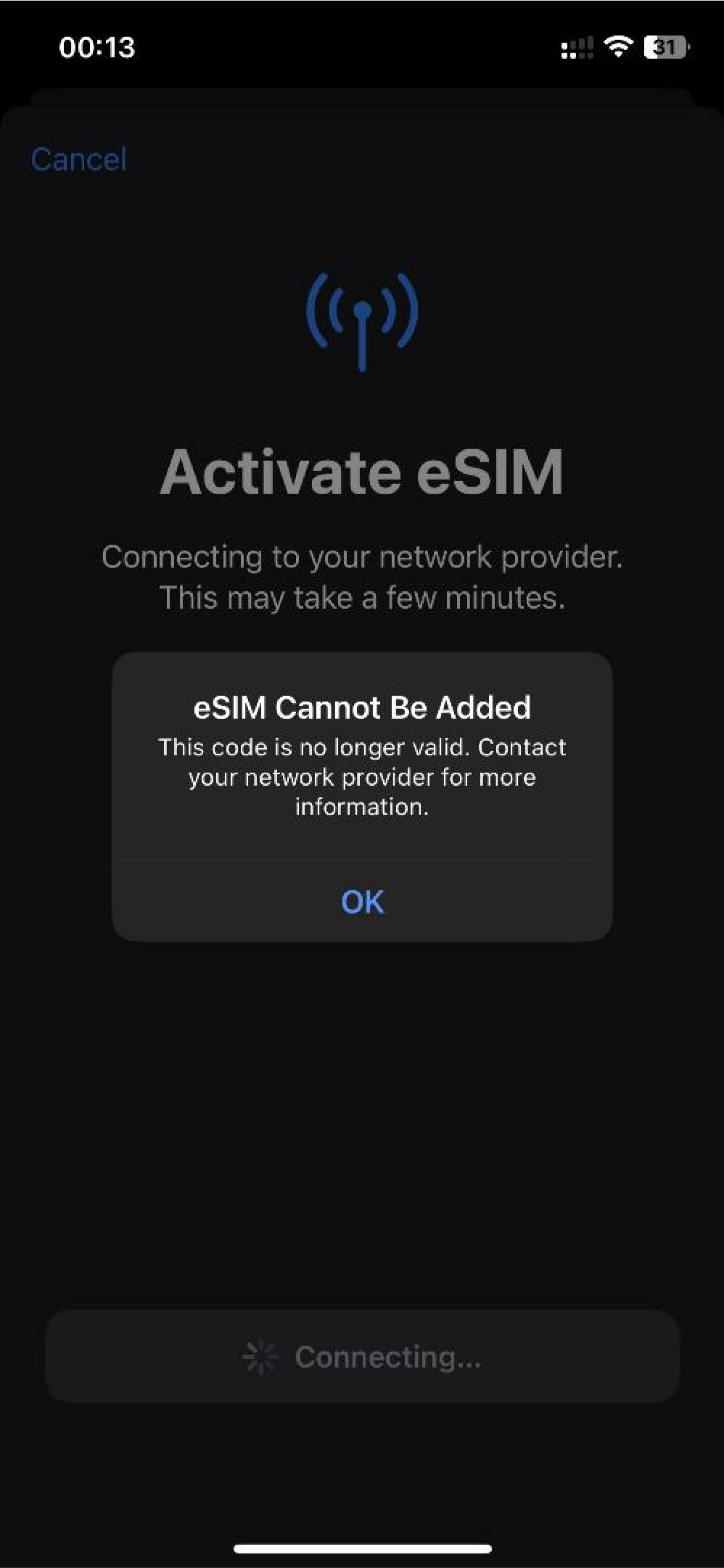
When you attempt to re-add an eSIM that has already been installed, or if the QR code scan fails due to an unstable network connection, you may encounter an error message.
1.Open Settings
2.Go to General
3.Tap About and scroll down
4.Under Cellular, check:
- If the eSIM is installed and active, you will see the ICCID number (usually a string of digits plus one additional digit)
- The status should display as On
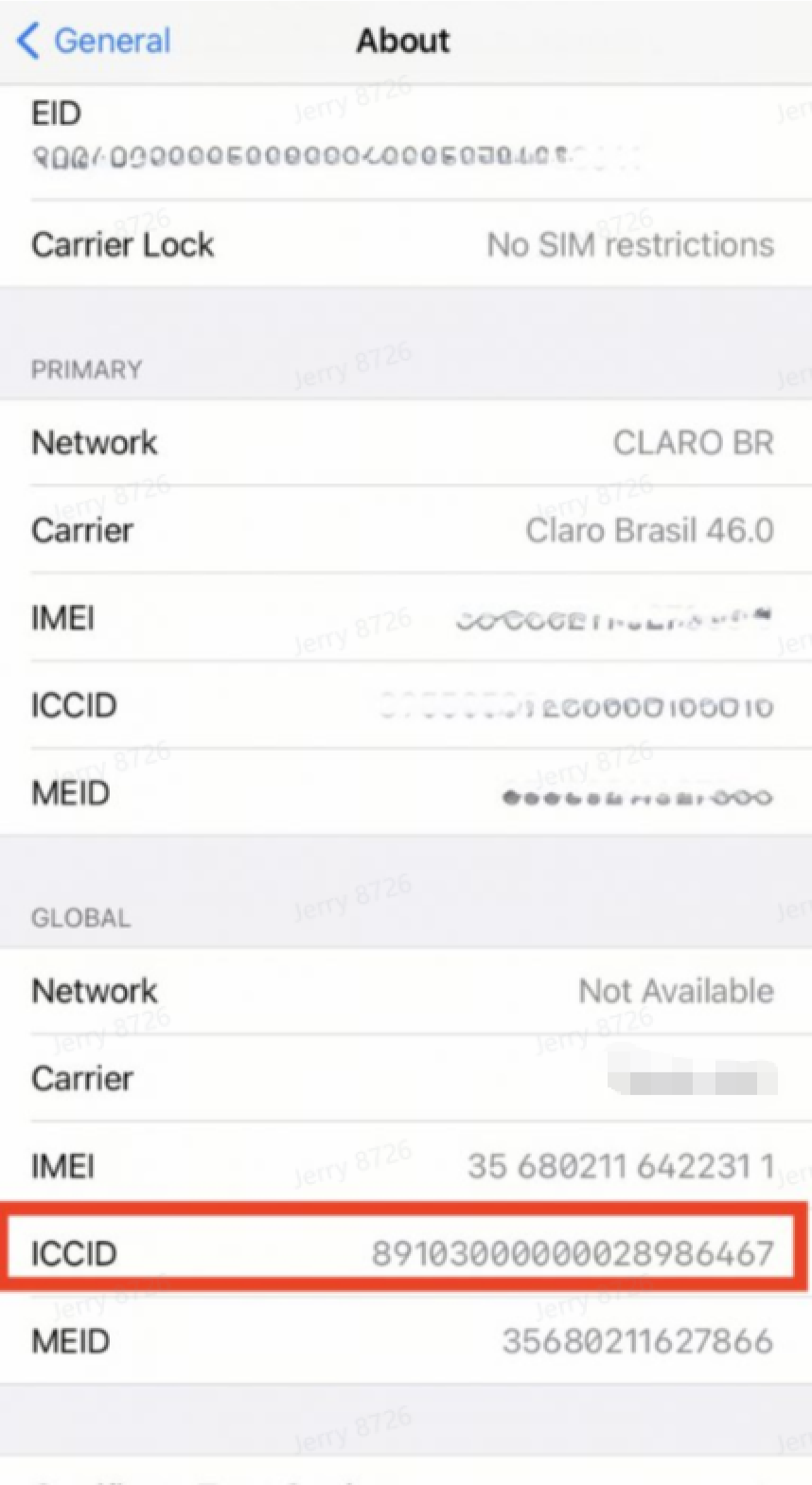
Note: An eSIM can only be installed once. After successful installation, do not delete or remove the eSIM.
If you are installing an eSIM for the first time but encounter an error message, it may be caused by the following:
- Unstable network connection
- VPN enabled
- Too many eSIMs installed on the device
Please try the following steps to install the eSIM correctly:
1.Disable the VPN function
2.Ensure the device is connected to a stable and reliable Wi-Fi network
3.Remove any unused eSIM profiles from the device
4.Try installing the eSIM using a different method (e.g., switch between QR code scanning and manual input)
If you have any questions, please feel free to contact our support team — we’ll be happy to assist you.
Sometimes you may not be able to easily identify an installed eSIM on your device. Possible reasons include:
- Unclear label names
The eSIM uses vague labels such as “Personal,” “Secondary,” “Work,” or “Travel,” making it hard to distinguish.
- Duplicate or similar labels
Multiple eSIMs installed on the device may have similar labels, causing confusion.
- eSIM has been removed
The eSIM may have been deleted from the device, so it no longer appears in the settings.
To prevent future confusion, we recommend the following when installing eSIMs:
Assign a unique and easily identifiable label during installation, for example:
- Country or region name (e.g., “France” or “Europe”)
- Purpose of the plan (e.g., “Business Trip – Japan”)
Keep eSIMs that are not currently in use but may still be useful.
You need to verify the eSIM’s ICCID (Integrated Circuit Card Identifier), a unique number consisting of 18–22 digits.
Check ICCID in device settings:
1.Open Settings.
2.Go to General → About (iOS) or SIM Manager → SIM Status (Android).
3.Ensure the relevant eSIM is enabled, then look for its ICCID under Cellular Number or SIM Info.
4.Compare the ICCID displayed here with the ICCID shown in the Email and "My eSIM".
If you have any questions, please contact our support team.
Internet speed usually depends on factors such as local carrier coverage, network congestion, and your device’s priority within the network.
However, if your eSIM requires manual APN setup or update and it is not configured correctly, the slow speed is likely due to eSIM settings.
If you experience slow internet speed, please try the following steps:
- Configure your APN settings if required
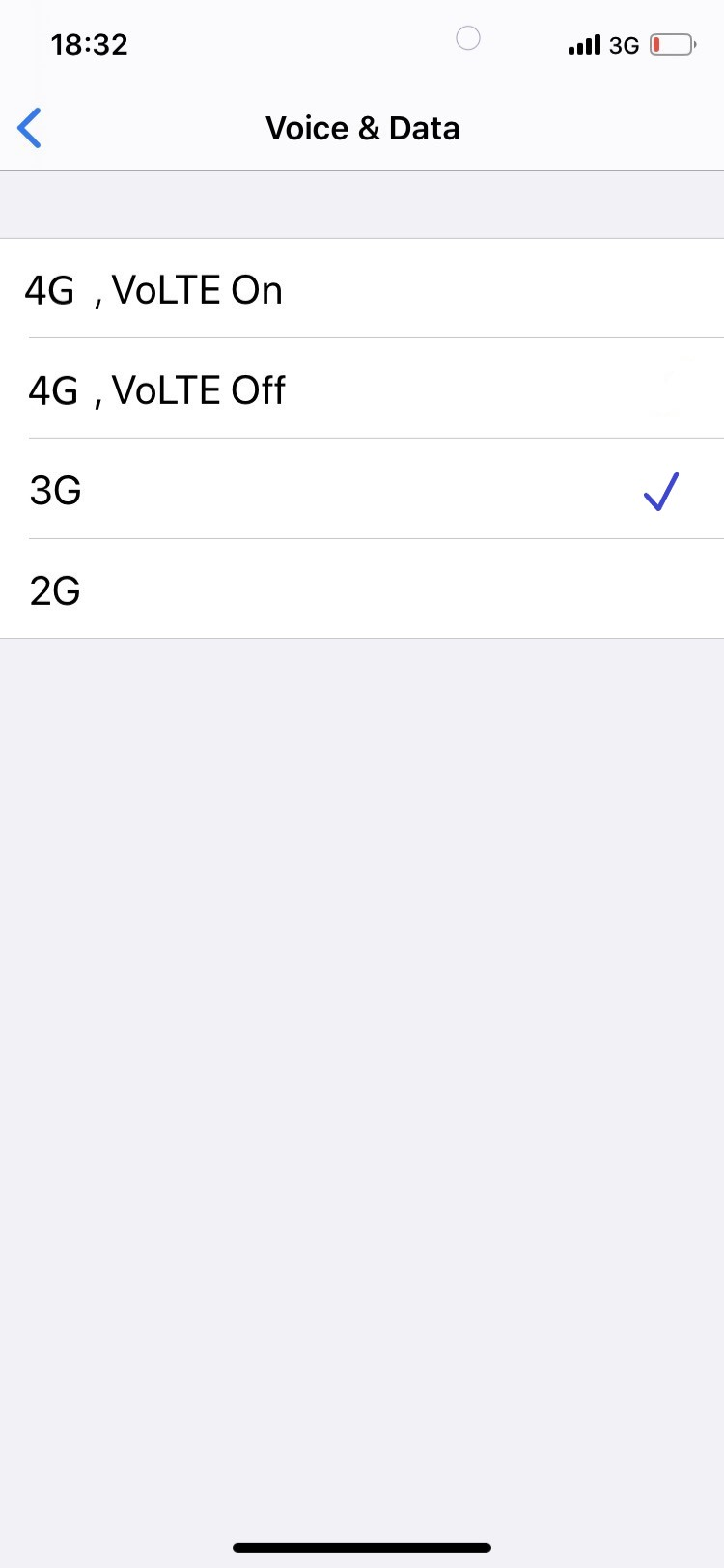
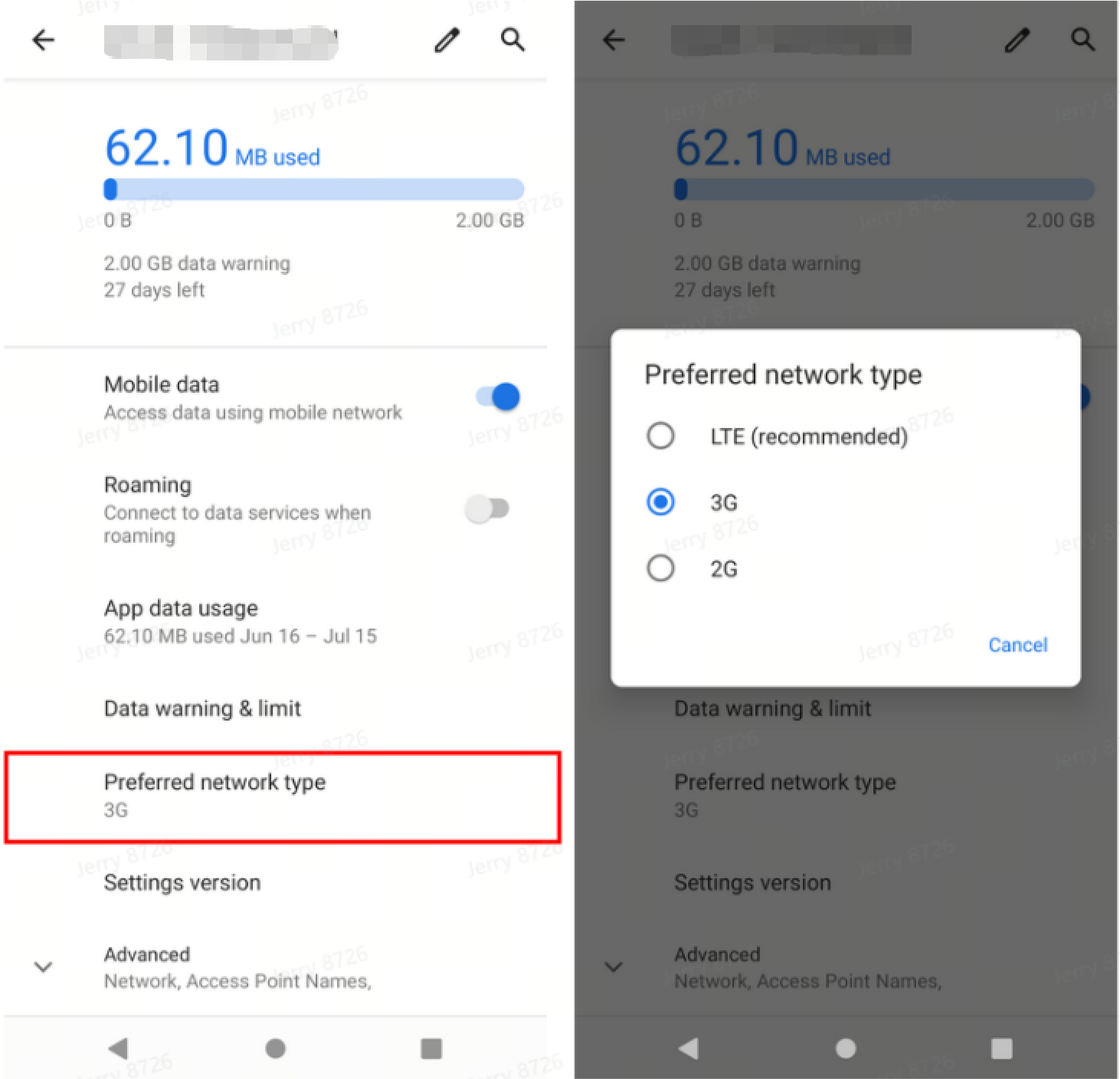
- Temporarily set your device to 3G to improve stability
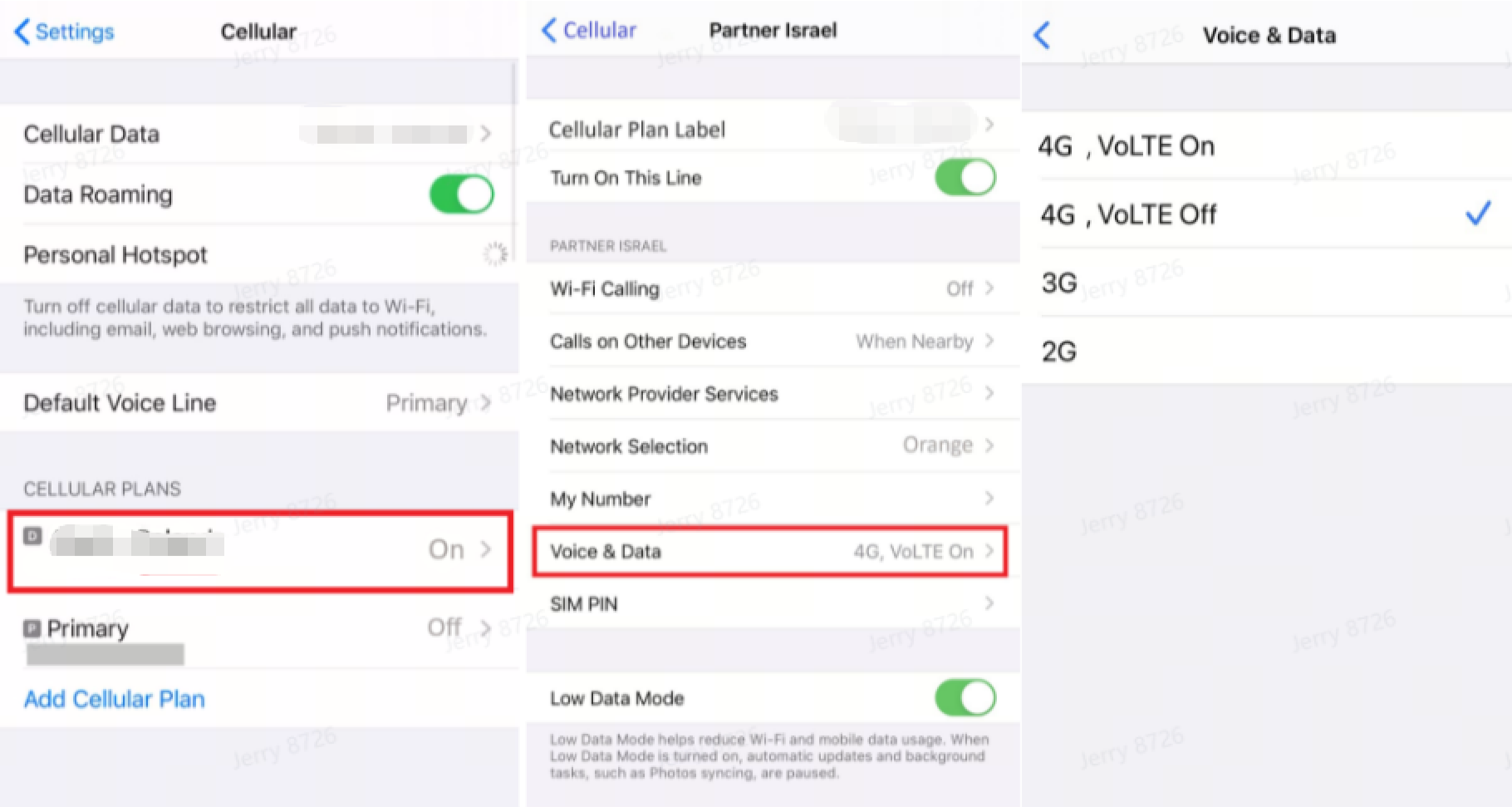
If your internet speed remains slow after performing the steps above, please try the following:
- Set your device to 3G (if available)
- Turn Airplane Mode on and then off
If your eSIM supports multiple networks, you can also try switching to another available network to see if a more stable or faster connection is available.

 SMS
SMS  WhatsApp